

Overview
Salesforce Security Health Check is a built-in assessment tool that measures how closely your organization's security settings align with Salesforce security best practices. It provides a score from 0 to 100, with higher scores indicating stronger security controls.
The Health Check score helps administrators identify security gaps, prioritize improvements, and maintain a more secure Salesforce environment. Security Center Essentials also tracks this score over time so you can monitor trends and improvements.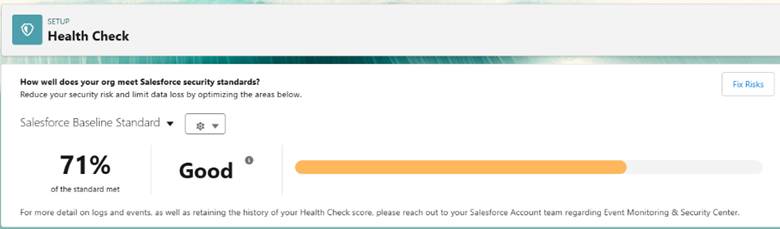
What Your Score Means
Your score is calculated by comparing your current Salesforce security settings against the Salesforce recommended baseline (or against a custom baseline if your organization has defined one).
In general:
|
Score Range |
Meaning |
|
90-100 |
Strong alignment with Salesforce security recommendations |
|
70-89 |
Generally secure, but improvements are recommended |
|
Below 70 |
Significant security gaps should be reviewed and addressed |
Note: The score itself is less important than understanding which security settings are reducing the score and whether those settings introduce risk to your business.
What Clients Should Do
The checklist below can be used aid the thought process for reviewing Health Check security.
1. Review High-Risk Findings First
Focus on settings categorized as High-Risk or marked as Critical. These represent the areas most likely to expose your organization to unauthorized access or data compromise.
Common areas to review include:
- Password policies
- Multi-Factor Authentication (MFA)
- Session timeout settings
- Login and identity verification requirements
- User access and visibility settings
2. Enable and Enforce Multi-Factor Authentication (MFA)
MFA is one of the most effective ways to prevent unauthorized account access.
Ensure that:
- MFA is enabled for all applicable users.
- Users have registered approved authentication methods.
- Privileged users and administrators are prioritized.
3. Strengthen Password Policies
Review password policy settings and consider:
- Increasing minimum password length.
- Restricting password reuse.
- Limiting unsuccessful login attempts.
- Enforcing password expiration policies where appropriate.
Stronger password controls typically improve your Health Check score and reduce the risk of compromised accounts.
4. Review Session Security
Evaluate settings such as:
- Session timeout duration
- Identity verification requirements
- Restrictions on concurrent sessions
- Trusted IP ranges and login policies
These controls help protect access when users are working remotely or accessing Salesforce from unmanaged devices.
5. Remediate Findings Carefully
Salesforce provides options to quickly update settings to recommended values. However, organizations should not automatically apply all changes without reviewing their business impact.
Before making significant security changes:
- Assess impacts to integrations.
- Evaluate effects on third-party applications.
- Review impacts to user access.
- Test changes in a sandbox environment whenever possible. [trailhead....sforce.com]
6. Monitor Trends Rather Than One-Time Results
Security is not a "set it and forget it" activity.
Establish a regular review process:
- Review the Health Check score monthly.
- Investigate any score decreases.
- Reassess security settings after major releases, integrations, or organizational changes.
- Track progress over time through Security Center Essentials.
Before Applying Health Check Recommendations
Complete these steps before using "Fix Risks" or implementing multiple recommendations at once:
- Assess impact on integrations.
- Assess impact on automation and API users.
- Review effect on SSO configurations.
- Validate business process impact.
- Test changes in a sandbox environment.
- Document approved exception
Organizations should aim to:
- Maintain MFA for all users
- Review high-risk findings quarterly
- Test major security changes before deployment
- Regularly review user permissions and access
- Align security settings with Salesforce recommended baselines whenever possible
- Monitor Health Check trends after major system changes
Does a lower score mean my Salesforce org is insecure?
Not necessarily. Some organizations intentionally use settings that differ from Salesforce recommendations due to business requirements. However, lower scores should prompt a review to confirm that any exceptions are understood and accepted.
Should we fix every recommendation?
Not always. Organizations should balance security requirements with operational needs. Security settings should be evaluated for business impact before implementation.
Can the score improve immediately?
Yes. Many settings can be updated quickly, and score changes are typically reflected after the security configuration is updated.

