


This article includes links to and information from outside resources. We are not responsible for the content on the external site. If there is a link that does not work, please email [email protected] and we will attempt to adjust the information with an updated link.
We are excited to partner with Salesforce because their releases help you, too! The Spring '26 release for Salesforce is currently rolling out, and below are some of the key enhancements we want to highlight as your Salesforce partner.
The Release Date for Spring '26 will depend on the instance of Salesforce, but the main release weekends are on:
-
January 10, 2026
-
February 14, 2026
-
February 21, 2026
If you already know the instance your production Org is located on, you can head over to Trust Status, click on your instance name, and hit “Maintenance”. This will show you the date of the Salesforce Spring '26 release hitting your Org. If you don’t know your instance, go to Setup > Company Information.
Supported Browsers and Devices
Prepare for the Retirement of Microsoft Exchange Web Services (EWS) in Lightning Sync
Migrate Microsoft 365 Authentication in Einstein Activity Capture to Microsoft Graph
General Setup
Update Apex Code and Flows for Changed Sharing Recalculation Behavior
To optimize performance after large-scale updates to groups or roles, Salesforce now performs some sharing recalculations asynchronously. If Apex code and flows require that share records be updated immediately, the code and flows can break when this release update is enforced. Update Apex classes, tests, and flows that update group membership or roles if they rely on synchronous sharing recalculation.
When: This update is available starting in Spring ’26. Salesforce enforces this update in Spring ’27. To get the major release upgrade date for your instance, go to Trust Status, search for your instance, and click the maintenance tab.
How: Review the release update in Setup for information on identifying and fixing your Apex code and flows. To identify required updates, enable Test asynchronous sharing recalculation in Apex tests on the Sharing Settings page. To test your changes, enable this release update in a sandbox before enabling it in production.
List View Edit Limits Are Communicated More Clearly
List views rendered with Lightning Web Components (LWC) now prevent you from selecting or attempting to edit more than the supported maximum of 200 records at one time. Previously, if you selected more than 200 records, the edit icon still appeared and Salesforce didn’t restrict you from changing a field. However, when you attempted to apply your changes, an error notified you that your changes were unsaveable. To save you time and prevent the input of changes that can’t be saved, list views now enforce the 200-record limit earlier in the edit process.
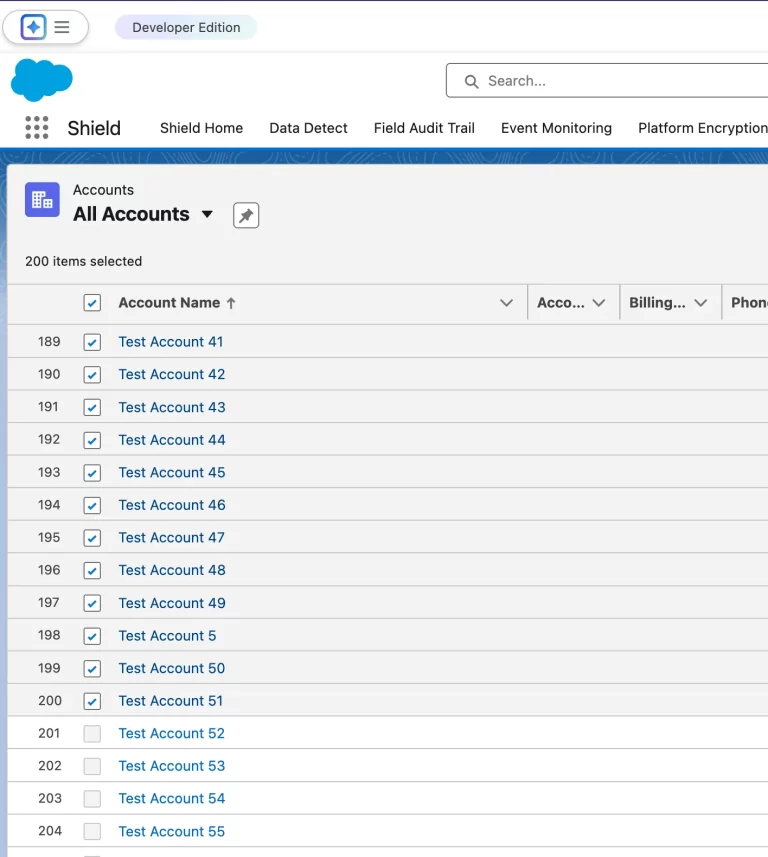
Use Updated Empty Value Placement in List View Sorting
When you sort a list view, blank fields, or null values, now are treated as the highest value in the dataset. For example, let’s say you have a column with the data 5, 9, null, and 2. If you sort this column in ascending order, you see 2, 5, 9, null. Previously, Salesforce treated blank fields as the lowest value, so that in the example given, you saw the data as null, 2, 5, 9.
Find the full list of updates here - General Setup
Reports and Dashboards
Use Existing Report Settings When Adding Tables to Dashboards
Save time and reduce manual configuration of report settings, such as groupings, custom formulas, and bucketing when adding lightning tables to dashboards. This feature reduces the risk of errors and ensures that the tables in the dashboard retain the same configuration as the report. This feature is now generally available.
How: In Setup, in the Quick Find box, enter Reports and select Reports and Dashboards Settings. Select Apply report settings to dashboard tables. When adding a Lightning table to your dashboard, select Use table settings from report.
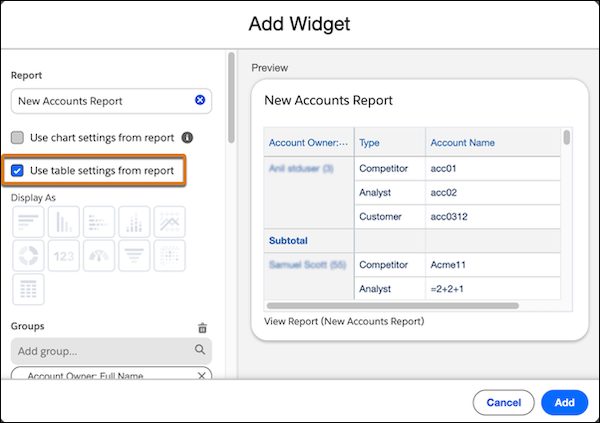
Share Reports and Dashboards Folders Using Usernames
Securely share report and dashboard folders using precise usernames. Search for users by their usernames, and reduce the risk of sharing sensitive information with the wrong users. Previously, only the name was shown, so two instances of “Jane Doe”, for example, would make you guess which of them is the accurate one. Now, you can differentiate because the username is displayed.
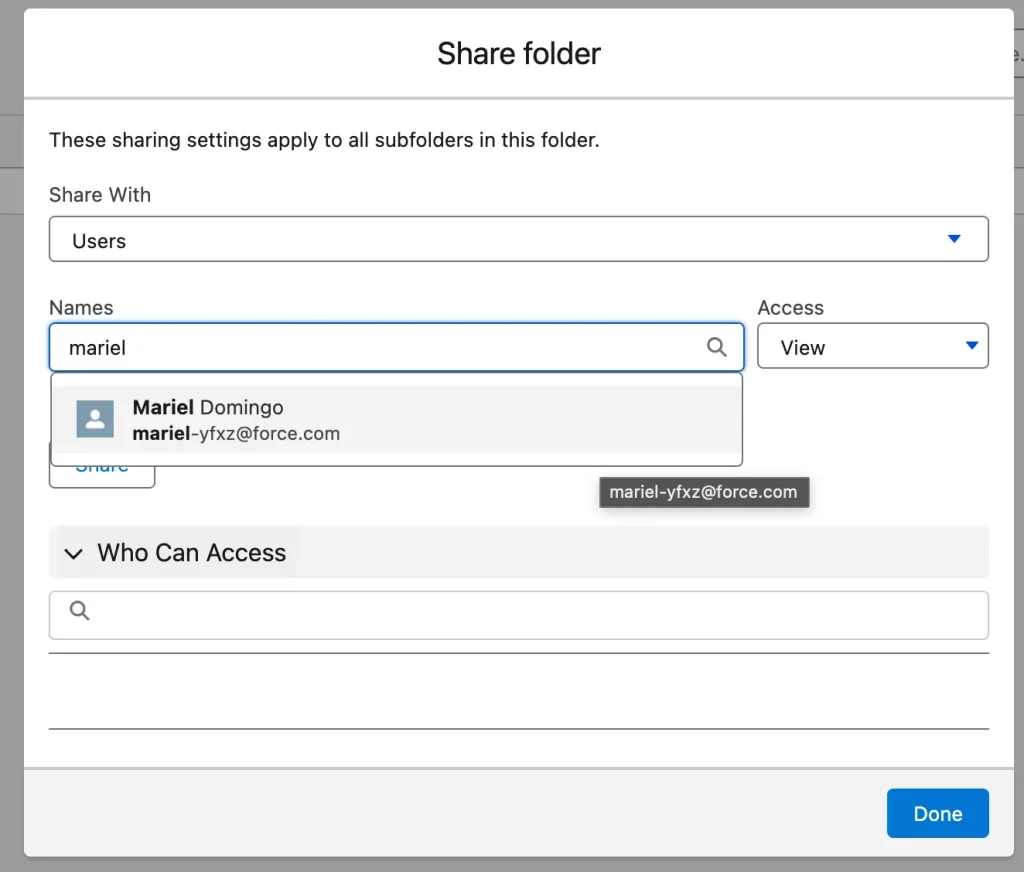
Ensure Compliance with Custom Disclaimers on Exported Reports
Ensure that your exported reports meet corporate policies and regulatory requirements by appending a custom disclaimer after the standard Salesforce disclaimer.
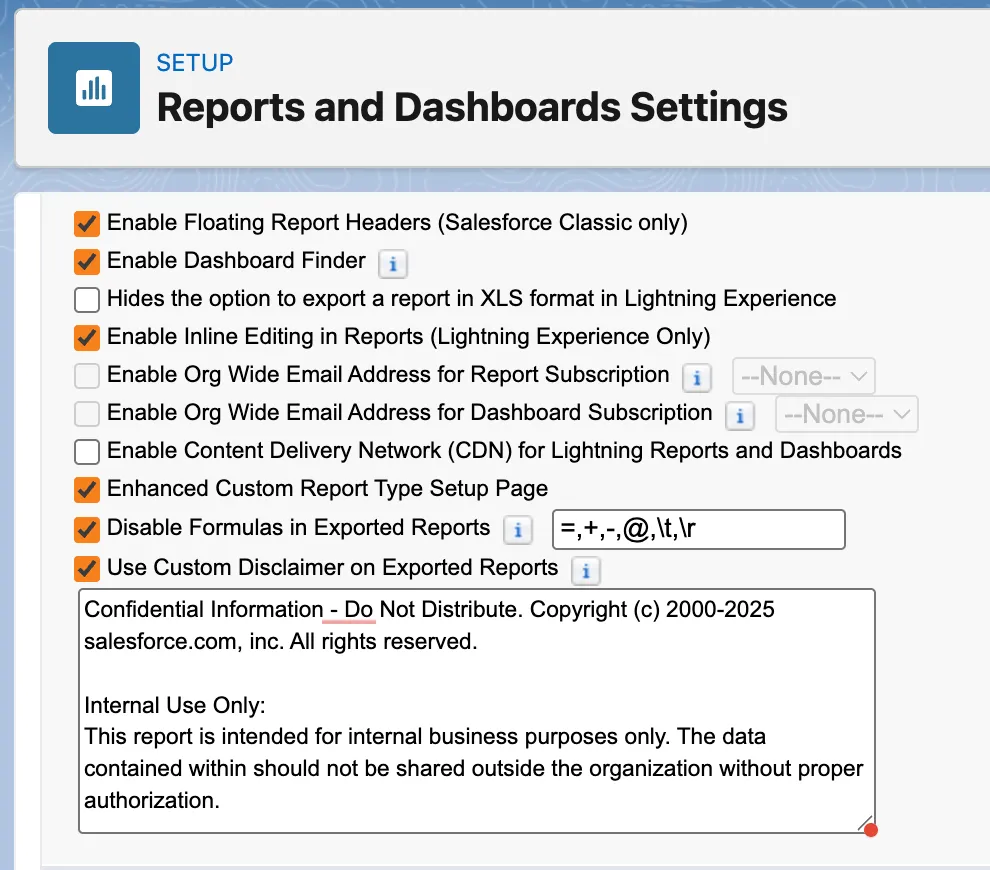
How: In Setup, in the Quick Find box, enter Reports and select Reports and Dashboards Settings. Select Use Custom Disclaimer on Exported Reports. In the text box, enter the custom disclaimer to show after the default Salesforce disclaimer.
Find the full list of updates here - Reports and Dashboards
Flow Builder
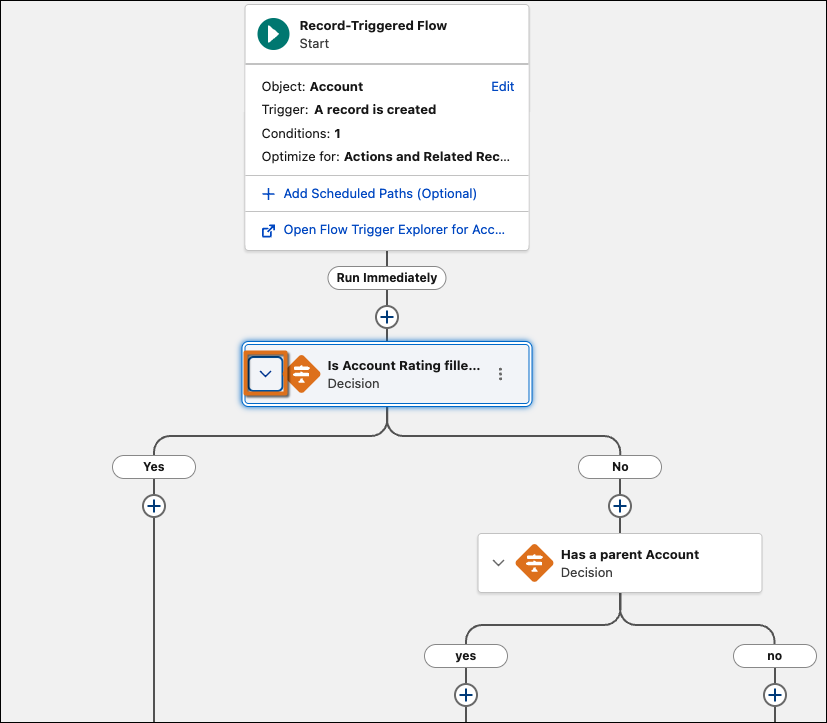
Simplify Your Flow Builder Layout by Collapsing Branching Elements
Manage complex flows more efficiently by hiding unnecessary detail on the canvas. Now you can collapse and expand branching elements with Flow Builder, including Wait, Decision, Loop, Path Experiment, and Async Actions, helping you focus on the key parts of your flow. To ensure a consistent workflow, Flow Builder remembers your specific expand and collapse preferences. This layout is saved automatically and locally in your browser, making it easier to return to your work without changing the view for other users.
How: Collapse and expand branching elements in the Flow builder canvas by clicking or next to an element’s name.
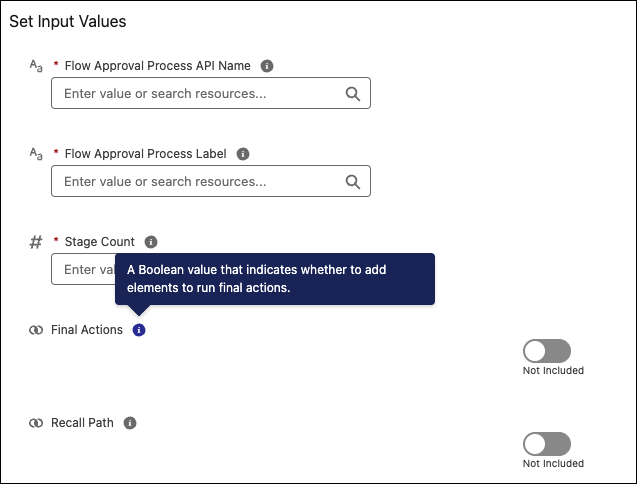
View Action Input Descriptions More Easily
Save time configuring flow actions. You can now hover over the infobubble next to an action input variable to view its description without including it. Upfront informational text helps you quickly understand why to use an input before deciding to assign it a value.
How: In Flow Builder, add an action element. Locate an input parameter and hover over or click the infobubble next to it to view the description.
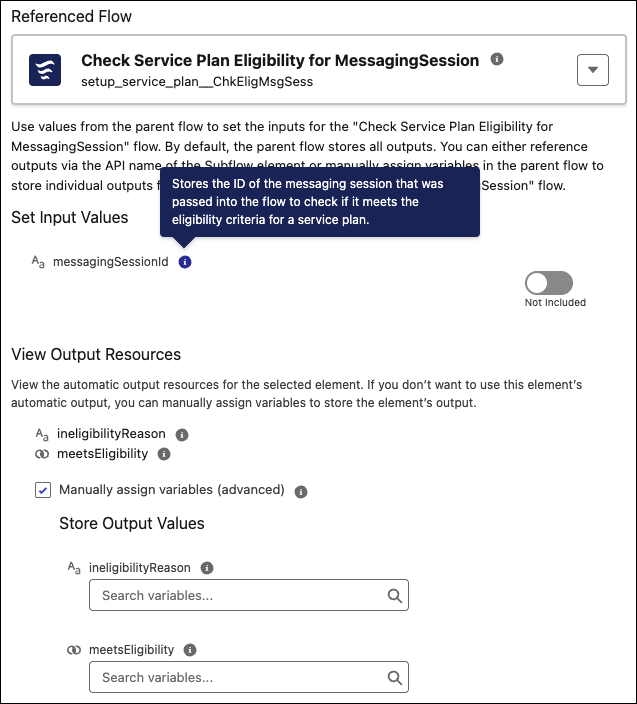
View Subflow Input and Output Variable Descriptions More Easily
The infobubbles for subflow output variables now show the custom description set by the admin or developer. If no custom description is defined, improved default text guides you to assign a resource. Additionally, view descriptions for a subflow’s input resources in an infobubble even if the resource isn’t included. Previously, you had to enable the input resource to know whether you needed it.
How: In Flow Builder, hover over the infobubble next to a subflow input resource to view its description without enabling it.
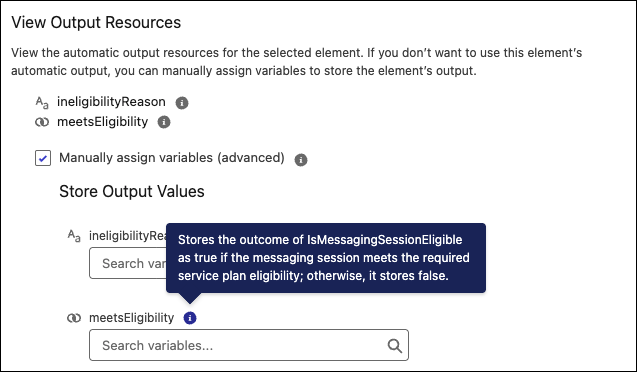
For subflow outputs, hover over the infobubble in the View Output Resources list to see the variable’s name, label, type, and description
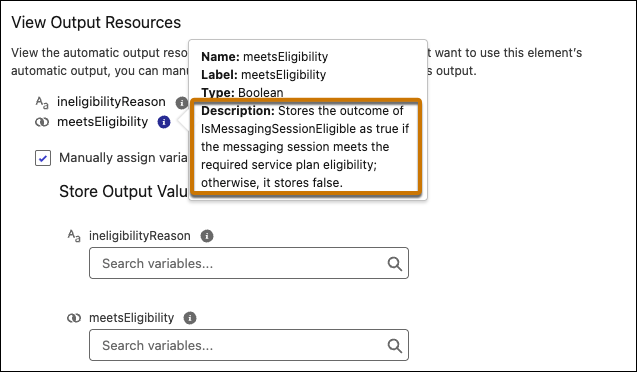
When you select Manually assign variables (advanced), the infobubble next to each output value shows the custom description, replacing the previous generic message.
Find the full list of updates here - Flow Builder
Flow Debugging
Assign Flow Tests to Specific Flow Versions for More Control
Reuse tests from previous flow versions if the scenario still applies to a new version. Align flow tests precisely with each flow version, so updates don’t cause incorrect results from other flow versions. Previously, a flow test applied only to the latest flow version. You deleted previous tests that didn’t apply to the new flow version. For example, you deleted the flow test for flow version 1 after creating the flow test for flow version 2. Starting in Spring ’26, you associate the same test with multiple flow versions. Decide which test scenario is for which flow version. When you save a new flow version, the system automatically includes tests from the source flow version.
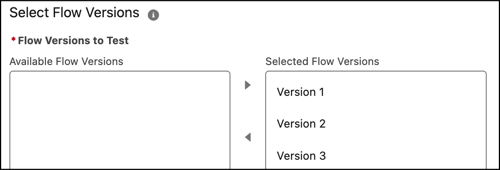
How: From Flow Builder, open a record-triggered flow and create a flow test. Complete the test details. Then select the flow versions that you want to associate with the test.
The flow test runs for the selected flow versions.
Find the full list of updates here - Flow Testing and Debugging
Flow Management
Monitor Flow Performance with View Flow Version Run Analytics
Get comprehensive insights into your flow version's overall health with new version-level analytics. Previously, understanding flow performance required piecing together data from individual element analytics or relying on incomplete aggregate metrics, which made it challenging to assess flow health holistically or spot systematic issues affecting multiple users. Now, you have a unified view showing completion rates, run status distributions, and detailed execution data across all individuals, so you can better monitor performance, identify version-wide trends, and share comprehensive insights with stakeholders.
Who: Users with Flow Performance installed and the Tableau Next Included App Business User permission set or higher-level permissions.
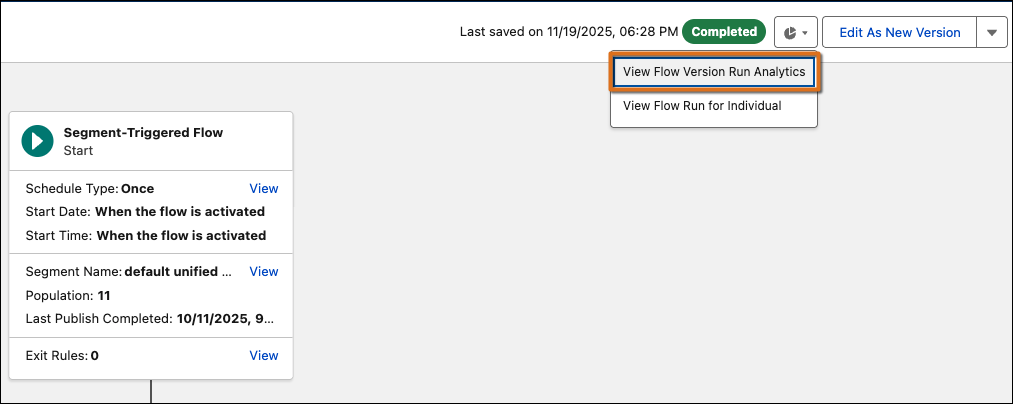
How: View version analytics in Flow Builder by opening a flow with completed runs, clicking , and selecting View Flow Version Run Analytics from the dropdown menu. Review the summary panel for overview metrics, or click Open Details to access the comprehensive Tableau dashboard.
View Flow Usage in the Automation Lightning App
Understand flow dependencies with the new Usage subtab in the Automation Lightning app. The subtab shows bidirectional relationships, including which automations a flow version uses and which automation versions depend on that flow. This visibility helps you assess the impact of changes before modifying or deactivating flows.
Who: To view the automations that a flow version uses or the automation versions that use a flow, you must have the Manage Flow user permission.
Why: We delivered this feature due to your idea on IdeaExchange.
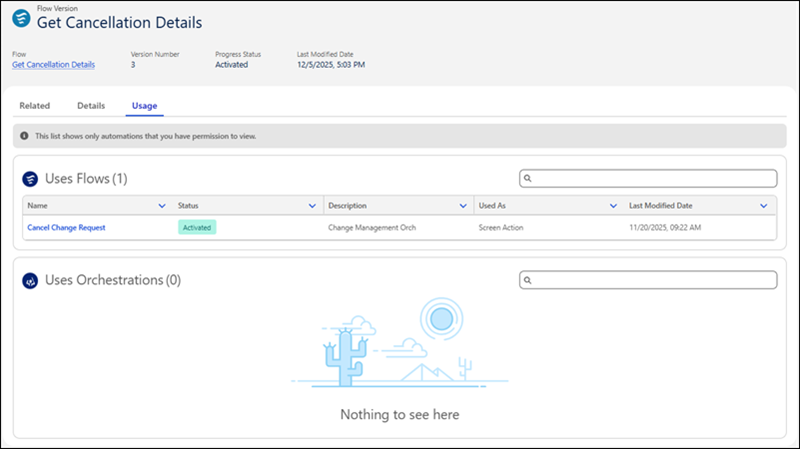
How: In the Automation Lightning app, select the Flows tab. On the Usage subtab for a selected flow, view the automation versions that use the flow and how they reference it.
On the Usage subtab for a selected flow version, view the automations that the version uses and how it references them.
Find the full list of updates here - Flow Management
Supported Browsers and Devices
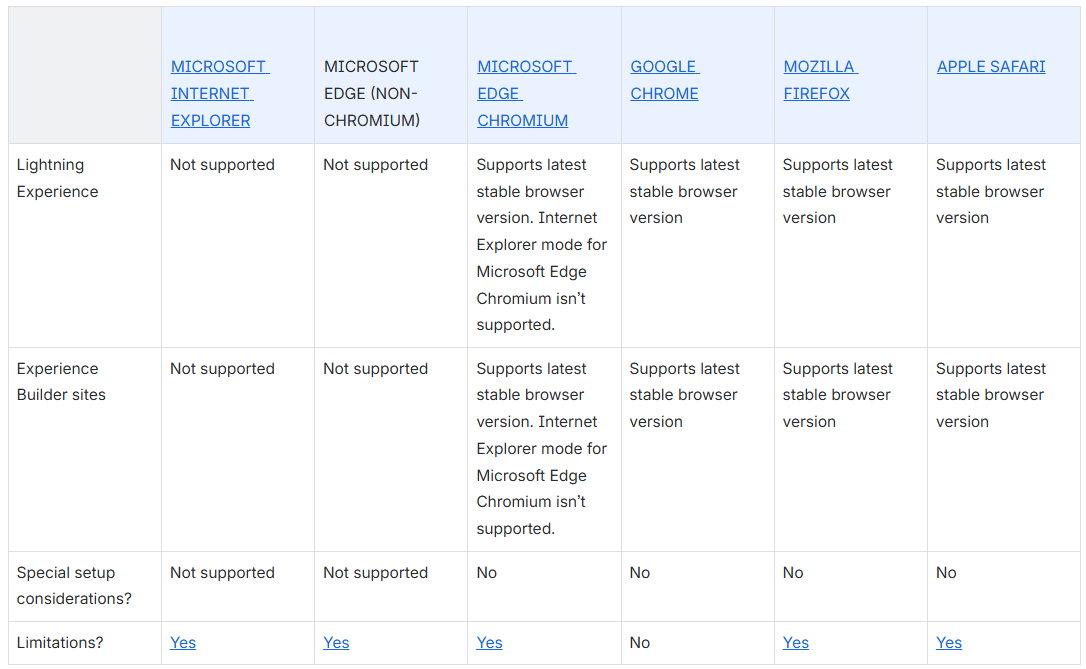
Consider these browser restrictions when working with Lightning Experience.
-
Salesforce doesn’t support nonbrowser applications that embed WebView or similar controls to render content for Lightning Experience. Examples of approaches that embed this type of control include Salesforce Mobile SDK, Microsoft’s WebBrowser Control, Electron’s embedded Chromium browser, iOS’s UIWebView and WKWebView, and Android’s WebView.
-
Lightning Experience doesn’t support incognito or other private browsing modes.
See the supported browsers and devices for Lightning Experience
Desktop and Laptop Browsers
Salesforce supports these browsers. Make sure that your browsers are up to date. Other browsers or older versions of supported browsers aren’t guaranteed to support all features.
Tablet Browsers
Use Apple Safari on iPadOS (iOS 13.x or later). Lightning Experience on iPad Safari doesn’t support portrait orientation and orientation switching. Use landscape orientation, and maximize your Safari browser to full width. To prevent the tablet from switching orientation, turn on the iPad rotation lock.

Salesforce treats touch-enabled laptops, including Microsoft Surface and Surface Pro devices, as laptops instead of tablets. Users can’t access the Salesforce mobile app on these devices. Users are redirected to the full site experience that’s enabled for them—Lightning Experience or Salesforce Classic. Only standard keyboard and mouse inputs are supported on these types of devices.
Phones
For the best experience, use the Salesforce mobile app.
Third-Party Browser Extensions and JavaScript Libraries
Before using a third-party browser extension or JavaScript library, Salesforce recommends that users check AppExchange for browser extensions and apps from Salesforce partners or the Component Reference for base components that match requirements.
Although some third-party browser extensions can personalize and enhance the Salesforce experience, it is not recommended to use browser extensions that manipulate the DOM. Using third-party browser extensions is at the user’s risk. Salesforce can’t prevent these extensions from accessing user’s Salesforce data, nor can it detect that there’s any attempt to access data. Additionally:
-
Browser extensions that insert or remove elements in the DOM can interfere with the stability of Lightning Experience and lead to unexpected behavior.
-
Browser extensions that don’t follow Salesforce security standards can fail to work properly in Lightning Experience.
-
The internal DOM structure of Lightning Experience can change in a future release, and compatibility with a third-party browser extension isn’t guaranteed.
To use a third-party JavaScript library with custom Lightning components, upload it first as a static resource. Use the JavaScript library by loading it in the component depending on which model that you’re using.
-
Lightning Web Components: Load a third-party JavaScript library via
lightning/platformResourceLoader -
Aura Components: Load a third-party JavaScript library via
ltng/require
Prepare for the Retirement of Microsoft Exchange Web Services (EWS) in Lightning Sync
Release Status: Preview
This feature is currently in preview and is not yet generally available. Details may change before Salesforce announces general availability.
Overview
Microsoft has announced that Exchange Web Services (EWS) will be retired starting October 1, 2026. As a result, Salesforce customers using Lightning Sync with EWS will need to plan ahead to avoid disruptions to email and calendar synchronization with Microsoft.
Once EWS is retired, Lightning Sync configurations that rely on EWS will no longer capture or sync data from Microsoft.
Who Is Impacted
This change affects customers who use Lightning Sync configured with:
- Organization-wide OAuth 2.0
- Microsoft Office 365 or Microsoft Exchange
- Exchange Web Services (EWS)
What You Need to Know
- Microsoft recommends Microsoft Graph as the modern API for accessing Microsoft services.
- Salesforce is offering a beta connection to Microsoft Graph API, which may be an option depending on your organization’s needs.
- Salesforce also recommends evaluating a transition from Lightning Sync to Einstein Activity Capture.
Recommended Next Steps
To prepare for this upcoming change, Salesforce recommends that you:
-
Review Microsoft’s guidance on migrating from EWS to Microsoft Graph.
-
Evaluate alternative Salesforce solutions, such as Einstein Activity Capture.
-
Contact Salesforce Customer Support to discuss your current setup and review available options, including the Microsoft Graph API (beta).
Migrate Microsoft 365 Authentication in Einstein Activity Capture to Microsoft Graph
Transition your Einstein Activity Capture’s Microsoft 365 authentication from Exchange Web Services (EWS) to Microsoft Graph, which is more modern, secure, and scalable. Microsoft is retiring EWS in October 2026, so switch to Microsoft Graph to avoid service disruption. Proactive notifications and a single-click tool make the migration process smooth.
When: This feature is available starting in February 2026.
Who: The update is available if Einstein Activity Capture is configured to use Microsoft 365. If you’re setting up Einstein Activity Capture with Microsoft 365 starting in Spring ’26, you’re automatically authenticated by using Microsoft Graph.
Why: This migration is essential to align with Microsoft’s evolving security standards and to avoid potential disruptions as EWS reaches its end of life in October 2026. By transitioning to Microsoft Graph, Salesforce makes sure that your organization remains compliant and competitive, with improved support for modern features and enhanced user-level authentication.
How: Before and during migration, make sure that your Azure admin has granted Microsoft Graph consent. Then, use the single-click migration tool to complete the migration and select the correct authentication method.
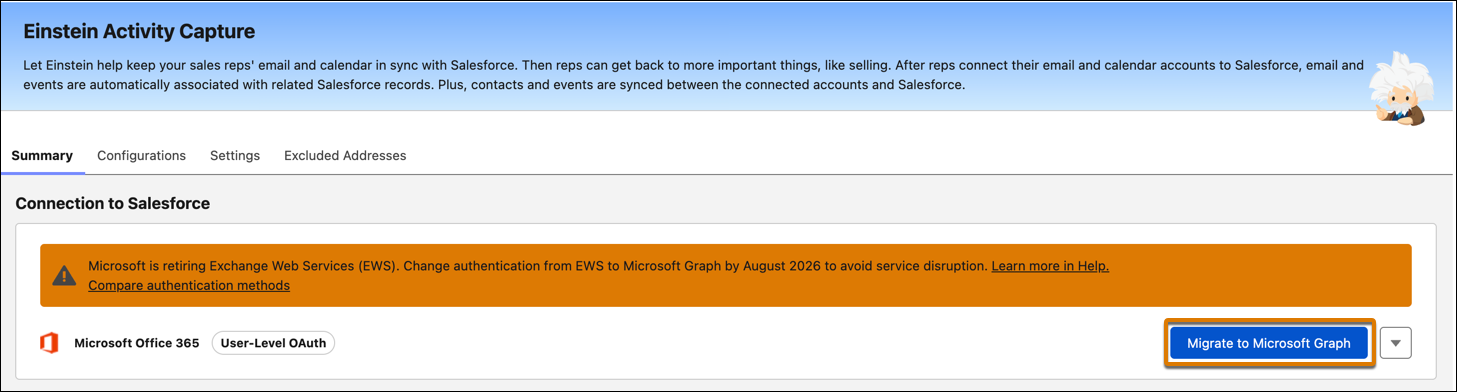
If Einstein Activity Capture is configured to use User-Level OAuth, users must reconnect to their Microsoft 365 accounts to complete the connection migration.

